Tue, 27 Jan 2026
How to sort groups of rows in Excel
In my day job, I work with a software
product that universities use to manage the
business of running a university (such
software packages are called ERP's, which
stands for Enterprise Resource Planning, and
the name of the product is Colleague, put
out and supported by a company called
Ellucian.)
The ERP has screens (i.e. web pages)
university staff and faculty use to access
and maintain information in the ERP. Each
web page/screen is accessed by either
clicking directly on the screen's
name/description on the ERP's UI menu, or by
directly entering what Ellucian calls a
mnemonic, which is usually just a short,
unique acronym for the description of the
screen.
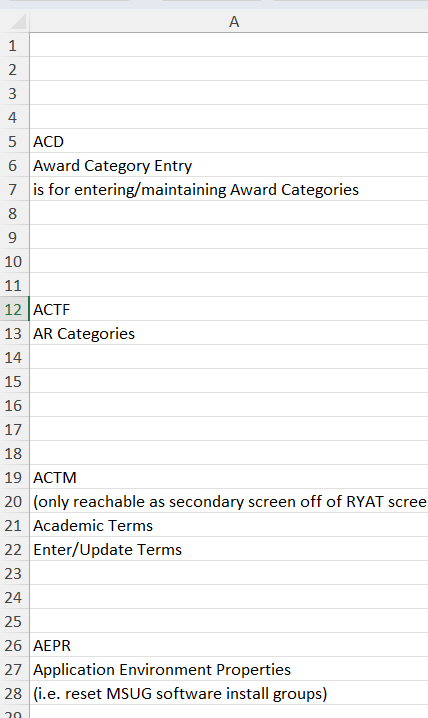
I keep a text file list of some of the more
useful mnemonics and their descriptions for
quick access to them, especially the ones I
use infrequently.
Part of the list is shown below (after I've
pasted it into Excel):
I usually just append new entries to the
list, but now there are so many, I felt it
would be nice to copy the list and paste it
into Excel and sort it, and then copy the
sorted list back into my mnemonic list text
file.
So that's what I did, thinking it would be a
small matter to sort it alphabetically. I
soon learned sorting lists that look like
what's shown in the example, is not
something easily done in Excel.
I searched Google for "How to sort groups of
rows in Excel", and what I found is that
apparently there is nothing built into Excel
that allows sorting groups of a fixed number
of rows, using the first row of each group
as what to sort by.
I did find many suggestions on adding
columns to the spreadsheet, so as to use
them for sorting, but either nothing
perfectly addressed what I wanted to do, or
suggestions were overly complicated.
I'll explain more about what I ended up
doing below this next image, which resulted
in a sorted list, using the first row of
each group as the key, while maintaining the
fixed number of rows for each group:
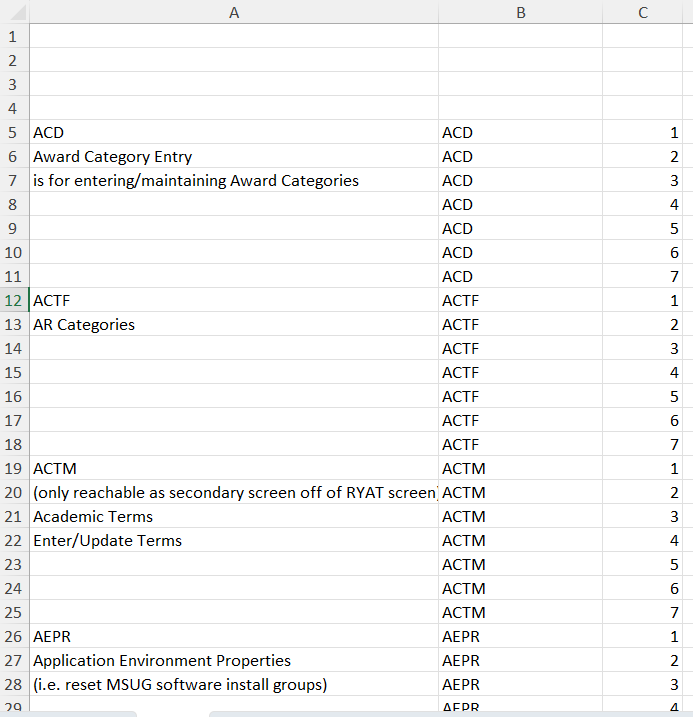
I did have to add two new columns (B and
C)... there's just no way around it, but
once I worked out the formulas, it wasn't
very complicated at all, and I got the exact
results I was looking for.
Here is the formula for column B:
=INDIRECT("A"&ROW() - ((IF(MOD(ROW()-4,7)=0,
7, MOD(ROW()-4,7)))-1))
Here is the formula for column C:
=(IF(MOD(ROW()-4,7)=0, 7, MOD(ROW()-4,7)))
Obviously, adjust the formulas if you're
using different columns.
Also, my list starts at row 5, and each
group is 7 rows deep. So if your list starts
at a different row, replace all the 4's in
the formulas with your starting row MINUS
ONE.
And if your number of rows making up each
group is more/less than 7, then change all
the 7's with your number of rows making up
each group to be sorted. Your list can start
on any row (assuming you change the formulas
accordingly), and all the groups can be any
number of rows each, BUT EACH GROUP MUST BE
MADE UP OF THE SAME COUNT OF ROWS.
The formula for column B calculates the row
that is the first row of any particular
group, and pulls its column A value into
each column B cell.
The formula for column C just calculates
which row of 7 that particular row appears
in.
Paste these formulas into columns B and C of
the first row of the first group in the
list, and then using Excel's Home > Editing>
Fill, copy them DOWN to the rest of the
column B/C rows/cells.
Finally, to sort the list, use the Data >
Sort function, and make the dialog box that
pops-up, look like this:
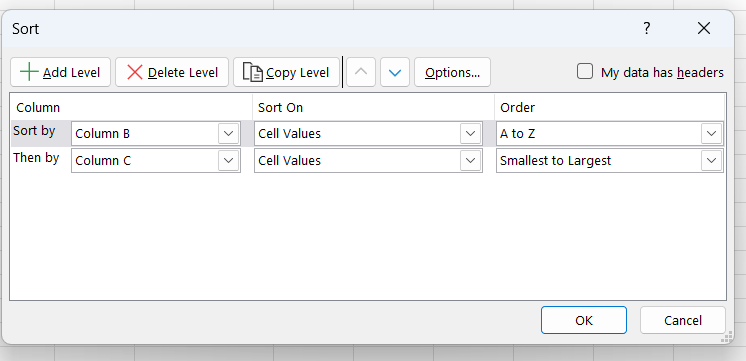
Before actually sorting the list (i.e.
clicking the dialogue box's "OK" button),
make sure to set the "My data has headers"
checkbox accordingly, and click the "Sort >
Options..." tab to set the "Sort top to
bottom" radio button as well.
Click "OK", and you should end up with
something similar to what's showing in the
second image above.
Once you're done copy all of column A, and
paste it into your original text file, or
just name the spreadsheet, save it, and use
it instead.
Use the comments if you have any questions
or issues to report.
Hope this helps, and thanks for reading.
posted at: 7:21pm on 27-Jan-2026
path: /Programming/Excel | permalink
comment...

|
|